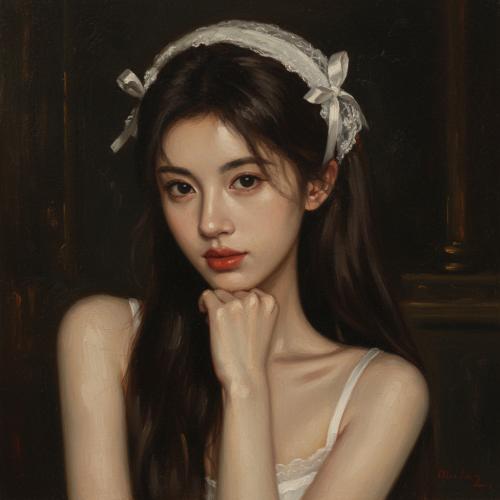
Photo In → Portrait Out

Generate an AI Portrait From Your Photo in Seconds

Upload a clear selfie, choose a style preset, then select AI model, aspect ratio, and resolution to generate a portrait that still looks like you. Credits vary by model, so you control cost and quality.

Quick Start
Trust anchor: Most users get a usable portrait in 1–2 generations with a clear photo.
1
Upload a clear, front-facing photo
2
Pick one of 6 style presets
3
Choose model, ratio & resolution, then Generate
Encrypted uploads · Auto-deleted after 24 hours · Multiple people or heavy blur can reduce likeness. Need credits? Sign in or buy credits. Explore: AI Portrait Generator · Anime Image Generator · Nano Banana Pro model · AI image pricing / credits.
Upload Photo & Keep Likeness
Photo-based portraits
6 Style Presets, Fast Start
Headshot → anime
Model + Ratio + Resolution Control
Predictable credits
Upload
0/10000
加载中...
nano-banana-v1-fast30 Credits
💡 Tip: Most users get a usable portrait in 1–2 generations with a clear photo. Start with a lower-cost model to test likeness first, then upgrade for the final (e.g., nano-banana-fast → nano-banana-pro, if available).

Result Gallery

Auto-saved

No Creation Yet

Please submit the form to begin your new creation.

My Creations

Common Reasons Results Look Off

These issues are input-related, not random. Fixing the photo usually fixes the outcome.

Blurry / Low-light Photo
If eyes and facial edges are soft, likeness drifts. Use sharper focus and brighter lighting.
Multiple People
The model may pick the wrong face or blend identities. Crop to a single person.
Occlusions
Sunglasses, hands, masks, or harsh shadows hide landmarks and reduce likeness.
Side Profile
Great for stylized art, weaker for headshot likeness. Front-facing works best.
Re-upload a Clearer Photo
Pricing safety pad: test likeness with a lower-cost model first, then upgrade (see AI image pricing / credits).

Most AI Portrait Tools vs Imagens.app

A structured comparison that matches what users care about: likeness, usability, and predictable cost.

FeatureTypical AI Portrait ToolsImagens.app
Likeness ControlRandom, unclear causes when results driftPhoto-based, identity-focused workflow with clear input guidance
Aspect RatioFixed or limited formats1:1 / 3:4 / 9:16 (plus model-supported options)
PricingBlack box, hard to predict spendCredits per model, preview cost before generating
Retry CostHigh, because you guess-and-payPredictable: test with a lower-cost model, then upgrade for the final

Why Choose Imagens.app to Generate an AI Portrait From Photo?

“Photo in → portrait out” only feels worth paying for when likeness is strong, results are predictable, and pricing is transparent. Imagens.app is built for that workflow: upload a clear photo, choose a style preset, then control the model, aspect ratio, and resolution before you generate. That means fewer wasted attempts and more portraits you can actually use—profile pictures, creator avatars, professional headshots, or gift-style art. Credits are deducted based on the model you select, so you can iterate with a cost-effective model first and upgrade quality only for the final version you plan to keep.

Likeness-Focused Photo-to-Portrait

Photo in → portrait out.

Likeness-Focused Photo-to-Portrait

Upload a selfie and generate an AI portrait that keeps identity recognizable—useful for headshots, avatars, and profile photos.
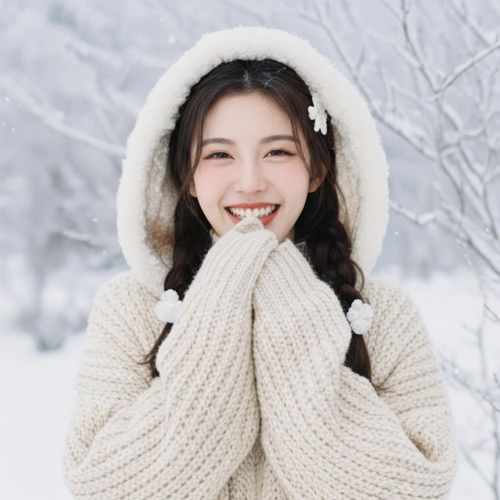
Style Presets You Can Trust

6 defaults included.

Style Presets You Can Trust

Start with a clean preset (headshot, cinematic, vintage, oil painting, cartoon, anime), then refine with small prompt edits to match your taste.
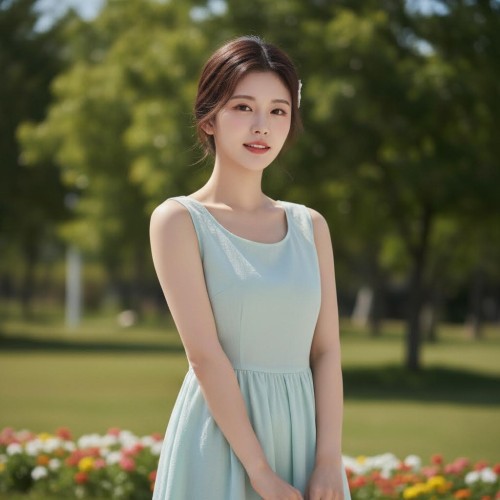
Model · Ratio · Resolution + Credit Control

Spend credits with confidence.

Model · Ratio · Resolution + Credit Control

Choose the AI model and output format before generating. Different models cost different credits, so you control budget vs quality intentionally.

How to Generate an AI Portrait From Photo (Photo In → Portrait Out)

A simple, practical workflow: upload a clear face photo, pick a style, choose settings, then generate. The better the input photo, the fewer retries you need.

1

Upload the Right Photo

Use a clear, front-facing photo with good lighting. Keep the full face visible (eyes, nose, mouth), avoid heavy blur, and minimize occlusions like sunglasses, hands, or strong shadows. A simple background helps.

2

Pick a Style Preset (6 Defaults)

Choose a starting style like Professional Headshot, Cinematic, Vintage Film, Oil Painting, Cartoon, or Anime. Presets reduce guesswork and help you get a usable portrait faster.

3

Select Model + Aspect Ratio + Resolution

Pick the AI model that matches your quality and budget. Set aspect ratio based on where you will use the portrait (1:1 avatars, 3:4 portraits, 9:16 stories) and adjust resolution for detail.

4

Generate, Fix Issues, Download

If results look off, simplify your prompt and regenerate: blur often needs a clearer input photo; multiple faces can confuse identity; side profiles and occlusions benefit from “front-facing, keep face unchanged”. Save your best portrait when it matches your goal.
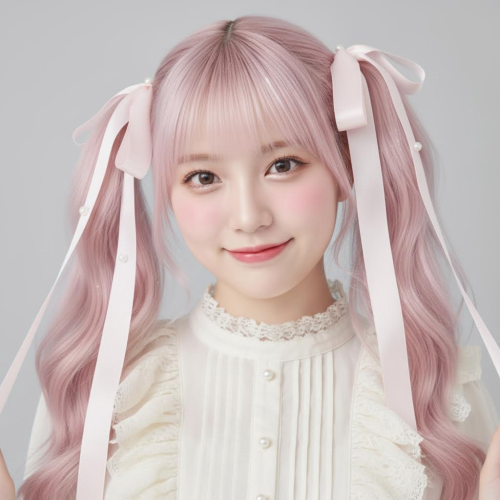
Create Your Sticker

About Imagens.app - Generate AI Portrait From Photo

Imagens.app helps you generate an AI portrait from photo with a workflow that feels product-grade: upload a photo, choose a style, control model/aspect ratio/resolution, then generate portraits you can actually use. This page is designed for people who care about likeness and usability—professional headshots, creator profile pictures, stylized avatars, and gift-style portraits. Credit-based pricing keeps spending predictable: explore styles with a lower-cost model first, then switch to higher quality for the final portrait you want to keep. Uploads are encrypted and auto-deleted after 24 hours, so you can try photo-to-portrait generation without leaving files around longer than necessary.

Photo-Based Portrait Workflow

Turn a selfie into a portrait while keeping identity recognizable.

Style Presets + Prompt Control

Start with presets, then refine details like lighting, background, and mood.

Format Controls

Choose aspect ratio and resolution for real deliverables, not random crops.

Credit Transparency

Credits vary by model, so you can control budget per generation.

Privacy-First Handling

Uploads are encrypted and auto-deleted after 24 hours.

Key Features of Our Photo-to-Portrait Generator

Designed for “photo in → portrait out” results: likeness, control, and fewer wasted generations.

Higher Likeness Starts with Better Inputs (So We Make It Obvious)

Photo-to-portrait tools fail for predictable reasons: low-resolution selfies, motion blur, harsh backlighting, heavy face occlusion, or multiple people in frame. This page is designed to reduce those failures up front by making “what works” clear and easy to follow. Use a front-facing photo with sharp focus on the eyes, even lighting, and an unobstructed face. Keep sunglasses, hands, and extreme shadows out of frame, and avoid side profiles if your goal is a recognizable headshot. When the input photo is clean, the model spends less effort guessing what your face looks like and more effort rendering the portrait style you asked for. In practice, that means fewer retries and a better chance that a single paid generation produces a portrait you actually want to keep.
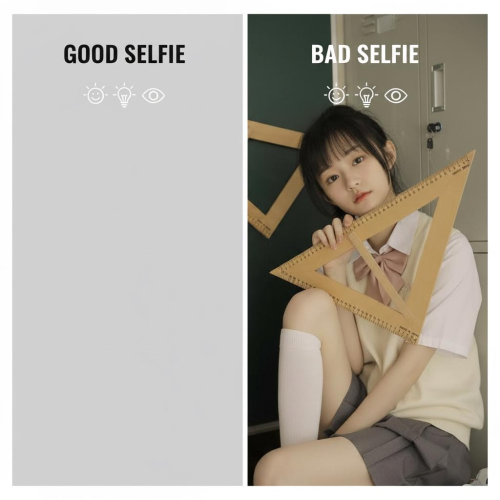
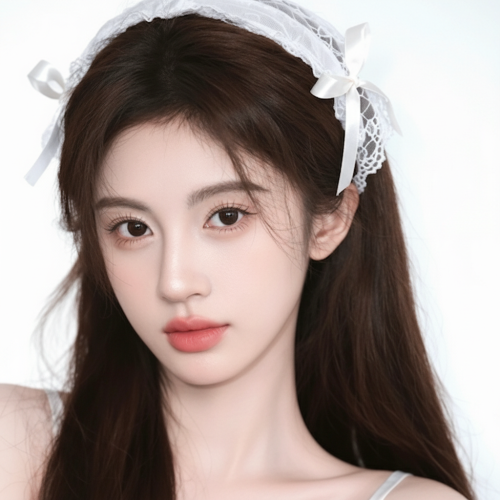
Higher Likeness Starts with Better Inputs (So We Make It Obvious)
Intentional Control: Style Presets + Model/Format Choices Before You Pay

Intentional Control: Style Presets + Model/Format Choices Before You Pay

Most “AI portrait from photo” pages hide the knobs that matter, which leads to wasted credits: you generate at the wrong aspect ratio, choose a model that is too expensive for experimentation, or pick a resolution that is overkill before you even know the style direction. Here you start with six practical style presets, then choose the model, aspect ratio, and resolution before generating. That makes your cost predictable: explore with a cost-effective model to test headshot vs cinematic vs vintage, then upgrade model and resolution only for the final portrait. It also makes outputs more usable: choose 1:1 for avatars, 3:4 for portrait framing, or 9:16 for stories. The result is a workflow that feels like a product, not a lottery.

Performance for Photo-to-Portrait

Fast generation with practical controls and privacy-first handling.

~ 30-90sGeneration Time
Model · Ratio · ResolutionControls
Encrypted · Auto-deleted in 24hUploads

Frequently Asked Questions

Common questions about generating an AI portrait from photo on Imagens.app.

What does “Generate AI Portrait From Photo” mean?
It means you upload a real photo (usually a selfie), and the AI generates a portrait based on that photo—so identity and facial structure should remain recognizable while style and rendering improve. This is different from text-to-image portrait generation, where the person is invented from a prompt. Here the goal is “photo in → portrait out”: the same you, but as a professional headshot, a cinematic portrait, a vintage film look, or an artistic avatar. If you want a prompt-only portrait, use our <a href="/ai-portrait-generator" class="text-blue-600 hover:underline">AI Portrait Generator</a>.
What kind of photo works best (photo requirements)?
Use a clear, front-facing photo with good lighting and a sharp, unobstructed face. Avoid heavy motion blur, extreme angles, sunglasses, masks, hands covering the face, and harsh backlighting that turns your face into a silhouette. Try to keep the full head visible and include some neck/shoulders so the portrait framing looks natural. Simple backgrounds help the AI separate the subject cleanly, which often improves hair edges and jawline detail. Better input photos typically mean fewer retries and fewer wasted credits.
What if my photo is blurry, dark, or low quality?
Blurry and underexposed photos reduce likeness because the AI has to guess missing facial details. If you can, upload a sharper photo first. If you must use a low-quality image, keep the prompt simple and ask for stabilization: “use the uploaded photo as reference, keep face unchanged, front-facing portrait, natural skin texture, soft light, clean background.” Avoid adding too many stylistic requests at once. Also consider switching to a higher-quality model for the final pass; it often handles detail reconstruction more cleanly.
What if there are multiple people in the photo?
Multi-person photos are one of the most common reasons likeness fails, because the model may blend faces or choose the wrong subject. For best results, crop the photo so only one person remains. If cropping is not possible, explicitly instruct the prompt: “use the person in the center as the only subject, keep identity, remove other people.” Even then, results may vary. The fastest, most cost-effective approach is to upload a single-person image with a clear face.
Does it work with side profiles or faces partially covered?
Side profiles and occlusions (hair covering eyes, hats, hands, masks) can work, but likeness may drift because key facial landmarks are hidden. If your goal is a recognizable headshot, choose a more front-facing photo. If you want an artistic portrait where perfect likeness is less critical, you can use side profiles and lean into style. Prompt tips that help include “front-facing”, “eyes visible”, “no occlusion”, and “keep face unchanged”. Higher resolution can improve edge quality, but it cannot fully recover missing identity information.
How do style presets work (headshot, cinematic, vintage, oil painting, cartoon, anime)?
Style presets are starting points: they provide a “direction” that most users want without requiring expert prompts. Choose a preset first, then add a few constraints: background (studio gray, outdoors bokeh), lighting (softbox, golden hour), mood (friendly, serious), and any “do not change” notes (“keep face unchanged”). If you want anime specifically from text, you can also try our <a href="/anime-image-generator-from-prompt" class="text-blue-600 hover:underline">anime image generator</a>. Presets reduce guesswork and usually reduce retries.
How does pricing work? Are portraits free?
This tool uses credit-based pricing and is not unlimited free. Credits are deducted based on the AI model you select, and higher-quality models generally cost more credits per image. A good workflow is to explore with a cost-effective model and moderate resolution to find the style you want, then upgrade model and resolution only for the final portrait you plan to keep. This approach typically feels most worth paying for because you avoid repeating expensive generations and your cost stays predictable.
How do model choice, aspect ratio, and resolution affect results?
Model choice affects realism, stability, and cost. Higher-quality models often produce cleaner hair edges, more natural skin texture, and fewer artifacts, but they cost more credits. Aspect ratio affects framing: 1:1 is great for avatars; 3:4 feels like classic portrait framing; 9:16 suits stories; 16:9 is useful for banners. Resolution affects fine detail and sharpness. A practical strategy is to generate at moderate resolution while exploring, then increase resolution for the final version once the portrait direction is correct.
What is your privacy policy for uploaded photos?
Imagens.app is designed for privacy-first photo handling. Uploads are encrypted and auto-deleted after 24 hours. Your uploads are used only to generate the portrait you request. If you want the strongest privacy, avoid uploading sensitive or personal documents, and prefer using a photo that you are comfortable processing through an AI tool. If you download and save your results, you remain in control of where those files are stored afterward.
Can I use the generated portraits for commercial projects?
In general, generations created with paid credits are intended for creator workflows such as profile images, marketing visuals, thumbnails, and design references, but exact usage rights can depend on your plan and the site’s terms. If you need commercial usage, generate with paid credits and keep records of the generation. For brand or client work, aim for clear prompts and higher resolution so the final output is clean enough to publish. If your project is sensitive (client portraits), consider uploading only with consent and using the privacy guidance above.

Still have questions? Contact us at resend0@foxmail.com

User Reviews

What users are saying about generating AI portraits from photos with Imagens.app.

"The headshot preset kept my face surprisingly consistent. Great for profile updates."

Emma Brooks
Creator

"Style presets make it feel less random. Cinematic portraits look premium."

Liam Carter
Designer

"I tested a cheaper model first, then upgraded for the final. Credits felt predictable."

Sofia Ramirez
Marketing

"3:4 ratio is perfect for a portrait crop. Less manual editing afterward."

Noah Wilson
Founder

"Vintage film style looks real, not like a harsh filter. Clean skin texture too."

Ava Johnson
Content Creator

"The photo requirements section saved me retries. A better selfie fixed everything."

Ethan Lee
Product Manager

"Generated a professional headshot without booking a studio. Worth it."

Mia Davis
Recruiter

"Oil painting preset is gorgeous and still looks like me. Great gift idea."

Daniel Chen
Engineer

"The headshot preset kept my face surprisingly consistent. Great for profile updates."

Emma Brooks
Creator

"Style presets make it feel less random. Cinematic portraits look premium."

Liam Carter
Designer

"I tested a cheaper model first, then upgraded for the final. Credits felt predictable."

Sofia Ramirez
Marketing

"3:4 ratio is perfect for a portrait crop. Less manual editing afterward."

Noah Wilson
Founder

"Vintage film style looks real, not like a harsh filter. Clean skin texture too."

Ava Johnson
Content Creator

"The photo requirements section saved me retries. A better selfie fixed everything."

Ethan Lee
Product Manager

"Generated a professional headshot without booking a studio. Worth it."

Mia Davis
Recruiter

"Oil painting preset is gorgeous and still looks like me. Great gift idea."

Daniel Chen
Engineer

"Cartoon avatar came out clean and readable at small sizes."
Grace Lee
Student

"Higher resolution noticeably improved hair edges and eye detail."

Oliver Brown
Photographer

"Anime preset + a short prompt tweak gave me a consistent channel avatar."

Chloe Wilson
Streamer

"Fast enough to iterate. I keep the best one and move on."
Jackson Davis
Sales

"Multiple people in my photo failed once; cropping to one person solved it."

Zoe Martinez
Operations

"Feels like a real tool, not a gimmick. Controls are where I expect them."
Henry White
Consultant

"Great for a clean LinkedIn-style portrait when you don’t want a photo shoot."
Natalie Green
HR

"Cartoon avatar came out clean and readable at small sizes."

Grace Lee
Student

"Higher resolution noticeably improved hair edges and eye detail."

Oliver Brown
Photographer

"Anime preset + a short prompt tweak gave me a consistent channel avatar."

Chloe Wilson
Streamer

"Fast enough to iterate. I keep the best one and move on."

Jackson Davis
Sales

"Multiple people in my photo failed once; cropping to one person solved it."

Zoe Martinez
Operations

"Feels like a real tool, not a gimmick. Controls are where I expect them."

Henry White
Consultant

"Great for a clean LinkedIn-style portrait when you don’t want a photo shoot."

Natalie Green
HR
🚀 Photo In → Portrait Out

Generate YourAI Portrait From Photo

Upload a clear selfie, pick a style preset, and generate portraits you can actually use—headshots, avatars, and artistic looks.

Encrypted uploads · Auto-deleted after 24 hours · Credits vary by model