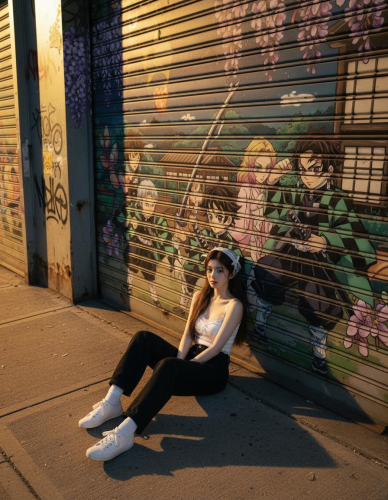
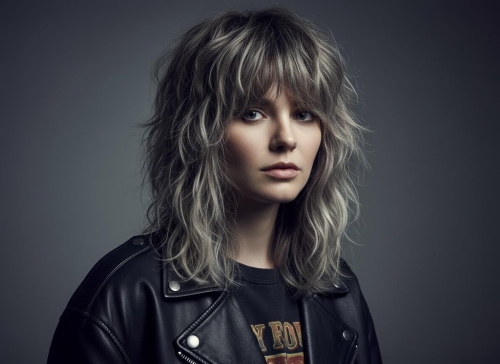
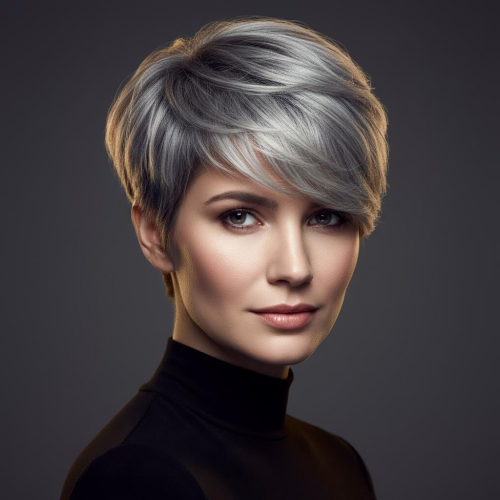
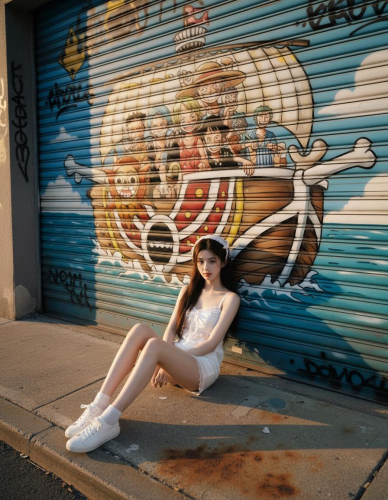
Sora Image Generator – Turn Prompts into High-Quality Images Fast
Write a prompt or upload a reference image, choose the Sora Image model, pick aspect ratio and resolution, then click Generate. Built for output format, cost control, and repeatable workflows—not random AI art.
Generate assets you can ship: the right ratio, the right resolution, and a workflow that keeps iterations predictable and cost-aware.
📣
Marketing Creatives
Generate campaign visuals that match your channel from the start. Pick 1:1 for feeds, 9:16 for stories, or 16:9 for hero banners. Iterate fast with drafts, then re-run the winner at higher resolution. Less resizing, fewer design loops, more deliverables.
🧴
Product Mockups
Create clean product scenes for ecommerce and landing pages without rebuilding the layout every time. Use prompts to lock materials and lighting, then switch backgrounds and props for variations. With img2img, guide composition from a reference while changing only what matters.
🎬
Thumbnails & Headers
Thumbnails fail when framing is wrong. Generate directly in 16:9 so the subject stays readable and centered. Keep a base prompt stable and change only one variable per run to get consistent options. Pick the best, download, and publish—no cropping later.
💰
Ads That Fit
Ad workflows punish rework. Generate the exact sizes you need so you can drop assets into your ad set with minimal edits. Batch a few variations to find winners, then regenerate the best version at higher quality. Credits stay predictable because the model cost is visible before you click Generate.
Sora Image Generator vs Other AI Image Tools
If you care about deliverables, the details matter: format controls, predictable cost, and a repeatable workflow.
Feature
Imagens.app (Sora Image)
Others
Aspect Ratio Control
✅ Yes
⚠️ Sometimes limited
Resolution Presets
✅ Yes
❌ Often unclear
Credit Transparency
✅ Visible before generating
❌ Hidden or inconsistent
Img2Img Workflow
✅ Supported
⚠️ Varies by tool
Image to ImageHOT
Text to Image
Result Gallery
Auto-saved
🎉 🎉 🎉 Your Sora image is ready!
No Creation Yet
Please submit the form to begin your new creation.
Imagens.app is a practical Sora Image Generator built for real workflows: generate from a text prompt (text-to-image) or start from a reference image (image-to-image / img2img). Choose the AI model (Sora Image), pick aspect ratio and resolution, then click Generate. It is built for people who care about output format, cost control, and repeatable workflows—not random AI art. Because credits are deducted based on the model you select, you can iterate quickly with a cheaper option and switch to higher quality when you are ready to finalize.
Prompt or reference image—your choice.
Text-to-Image + Image-to-Image (Img2Img)
Start from scratch with a prompt, or upload a reference image to guide composition, vibe, or style. This makes iteration feel more controllable and helps you converge faster on the look you want.
Sized for ads, socials, and banners.
Model · Aspect Ratio · Resolution Settings
Generate the right format from the start: square, vertical, or wide layouts, plus the resolution level that matches your use case.
Pay for what you generate.
Credit-Based Pricing That Feels Fair
Different models cost different credits. Prototype cheaply, then upgrade quality when the concept is locked—no surprise bills.
How to Generate Images with Sora Image
A simple flow: write a prompt (or upload a reference image), choose the model + size settings, and generate one or multiple images.
1
Write a Prompt (Optional: Add a Reference Image)
For text-to-image, describe the subject, scene, lighting, camera framing, and style. For img2img, upload a reference image and use the prompt to specify what to keep and what to change.
2
Select Model + Aspect Ratio + Resolution
Pick the Sora Image model, then choose the aspect ratio and resolution that match your platform or design goal.
3
Generate, Download, Iterate
Generate images, download the ones you like, then refine your prompt for better details and consistency.
Imagens.app makes Sora Image generation feel like a product, not a science project. This page supports both text-to-image (prompt-to-image) and image-to-image (img2img): write a prompt, optionally upload a reference image, select the AI model (Sora Image), choose an aspect ratio and resolution, and click Generate to get one or multiple images. It is ideal for creators and teams who need fast visuals: ad creatives, product concept shots, website hero images, thumbnails, storyboards, and design exploration. Because different models cost different credits, you can treat it like a production workflow: iterate quickly to find the direction, then render higher-quality outputs when you are ready to ship.
Text-to-Image + Image-to-Image
Prompt-to-image when you want fresh concepts, and img2img when you want to guide results with a reference.
Format Controls
Aspect ratio and resolution options for real deliverables.
Model Flexibility
Select the model that matches quality, speed, and budget.
Fast Iteration
Generate, refine prompt, and regenerate without friction.
Creator Friendly
Built for marketing, design, and content workflows.
Key Features of Our Sora Image Generator
A clean, controllable text-to-image and image-to-image workflow designed for people who care about output format and cost.
Model + Aspect Ratio + Resolution Controls (No Guesswork)
A good Sora Image result is not only about the prompt—it is also about format. On Imagens.app you can pick the AI model first, then choose an aspect ratio and resolution that fit where the image will actually be used. Use 1:1 for avatars and thumbnails, 3:4 or 9:16 for vertical social posts, and 16:9 for wide banners or hero sections. Resolution helps you trade speed and cost for detail: generate smaller drafts to explore composition, then upscale your intent with a higher-quality setting when you are ready to publish. Because credits are deducted based on the model you select (and the number of images you generate), you can keep experiments cheap and reserve premium generations for final output.
Prompt Structure + Reference Images for Predictable Results
If you want the Sora Image model to reliably follow your idea, structure your prompt like a mini creative brief: start with the subject (what is in the image), then the scene (where it is), then the mood and lighting (golden hour, soft studio light, neon night), then the camera (close-up, wide shot, lens, depth of field), and finally the style (photorealistic, cinematic, minimal illustration). Add constraints like “no text, no watermark” to reduce unwanted overlays, and specify what matters most (for example: product material, skin texture, fabric weave, or clean edges). When you use img2img, a reference image can reduce ambiguity: you can ask to keep the composition or mood while changing only key elements. This approach reduces random outputs, saves credits, and turns generation into a repeatable workflow your team can actually pay for.
Performance for Sora Image Creation
Fast iterations with practical controls for real deliverables.
~ 20-60sGeneration Time
Model · Ratio · ResolutionControls
10k+Creators
Frequently Asked Questions
Common questions about generating images with Sora Image on Imagens.app.
What is a Sora Image Generator?
A Sora Image Generator is an AI tool that turns text prompts or reference images into high-quality visuals using the Sora Image model. On Imagens.app, the workflow is straightforward: write your prompt, choose the AI model (Sora Image), select an aspect ratio and resolution, then click Generate. You can create one image or multiple images in a batch depending on your selection. The output is designed to be immediately usable in creative work like marketing assets, thumbnails, storyboards, concept art, and design exploration. Pricing is credit-based and credits are deducted based on the model you select, which keeps cost predictable and allows you to choose a cheaper model for drafts and a better model for final renders.
What should I include in a good Sora Image prompt?
A good Sora Image prompt is a compact creative brief: subject, scene, lighting, camera, and style. Start with the subject (who or what), then describe the setting (where), add lighting (soft studio, golden hour, neon night), specify the camera framing (close-up, wide shot, overhead), and add the style (photorealistic, cinematic, illustration). If you care about realism, describe materials and textures (metal, glass, fabric, skin) and add constraints such as “no text, no watermark” to avoid unwanted overlays. Avoid stuffing too many contradictory style words in one prompt. Clear structure usually improves prompt following and reduces wasted generations, which makes the tool feel worth paying for.
Can I choose aspect ratio and resolution?
Yes—aspect ratio controls framing, and resolution controls detail. Use 1:1 for square posts and avatars, 9:16 for vertical shorts and stories, and 16:9 for wide banners or YouTube thumbnails. Higher resolution helps with small details such as product labels, fabric weave, and cleaner edges, but can cost more credits depending on the model. A practical workflow is to generate drafts at a lower resolution to validate composition, then rerun the best prompt at a higher resolution for your final deliverable. This approach saves credits while still producing premium results.
How is pricing calculated? Is it free?
Pricing is credit-based and not unlimited free—each generated image deducts credits based on the model and settings you choose. Credits are deducted based on the AI model you select, and the total consumption increases when you generate multiple images at once. Different models have different quality and pricing, so you can decide whether you want fast, lower-cost exploration or higher-quality final output. If you are budget-conscious, iterate with a cheaper model to refine your prompt, then switch to a stronger model only for the last few generations. This “prototype cheap, finish premium” workflow is the easiest way to get value without feeling like every click is risky.
Why do results sometimes look off?
Results look off when the prompt is ambiguous, contradictory, or mismatched with your chosen format settings. If outputs feel random, simplify your prompt: remove extra style keywords, keep the scene description consistent, and specify the key constraint you care about most (for example: “centered product, clean background, soft light”). Add negative constraints like “no text, no watermark, no logo” if you see unwanted overlays. Also check your aspect ratio: a wide ratio can push the subject smaller, while a square ratio can force tighter framing. If fine detail matters, raise resolution or pick a higher-quality model to reduce artifacts.
How do I generate consistent variations for a campaign?
Consistent variations come from locking the base prompt and changing only one variable at a time. Keep the subject, style, lighting, and camera framing stable, then swap a single element such as background color, props, or mood. For marketing, you can generate a set of variations that share the same visual language—consistent lighting, similar camera angle, and the same design cues—so they look like one campaign. Using the same aspect ratio and resolution across the batch also helps. This disciplined approach reduces randomness and makes it easier to pick winners without burning credits on unrelated outputs.
Can I use the images commercially?
Many creators use generated images commercially, but your usage should follow the model and plan policy shown on the platform. Commercial use can depend on the plan/credits you use and the specific model policy. As a practical rule, if you are creating assets for business use, generate with paid credits so you have a clear purchase record and avoid relying on free-tier limitations. Also ensure you have the rights to any brand elements you include in the prompt (logos, characters, trademarks). If you need a brand-safe workflow, add constraints such as “no trademark, no logo, original design” and generate your own unique compositions.
Can I do image-to-image (img2img) with Sora Image?
Yes—img2img lets you upload a reference image to guide composition, mood, or style while your prompt controls the changes. If you upload a reference image, you can use the Sora Image workflow as image-to-image (img2img) instead of starting from a blank prompt. Describe what you want to keep (composition, pose, color palette, lighting mood) and what you want to change (outfit, environment, product variant, art style). This helps the model converge faster because the reference provides structure, while the prompt provides direction. Keep settings consistent across runs and iterate in small steps when you need tighter control.
Can I generate multiple images at once?
Yes—batch generation produces multiple variations from the same settings in a single run. Generating multiple images is useful when you are exploring a concept and want several options quickly, such as different compositions, lighting moods, or small stylistic changes. Keep in mind that generating more images will consume more credits, because credit deduction typically scales with the number of outputs and the model you selected. A cost-effective approach is to generate a small batch for exploration, then pick the best one and refine the prompt for a higher-quality re-run at your preferred resolution.
How do I get sharper details and cleaner edges?
Sharper results come from clear prompts, higher resolution, and the right model choice for the final pass. In your prompt, describe materials and textures (for example: “matte metal”, “fine fabric weave”, “sharp focus”) and keep the background simple if edge quality matters. Pick a resolution that matches your output requirement; low resolution drafts are good for exploring composition, but final renders benefit from higher settings. Finally, if your UI shows model options with different quality levels, choose a higher-quality model for the final pass. This combination typically produces cleaner edges, fewer artifacts, and more premium-looking Sora Image results.